
Prerequisites:
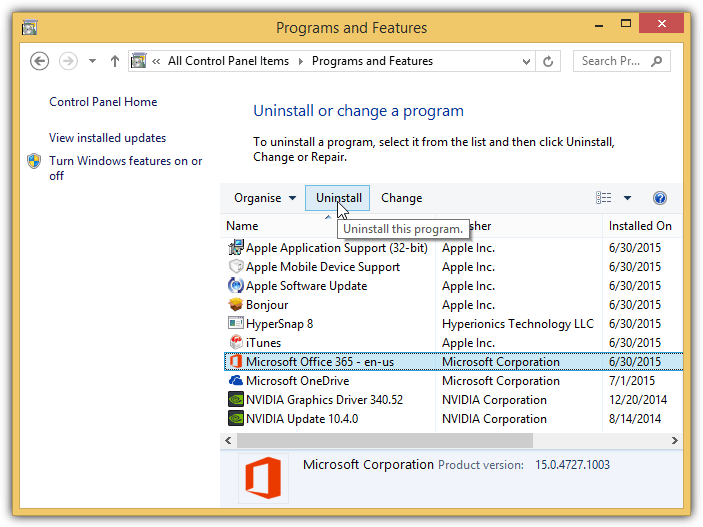
A.> Uninstall Microsoft 365
- Open the Start menu.
- Click Control Panel.
- Select Programs, or Programs and Features.
- Select Uninstall a program.
- Search for the Microsoft program you wish to uninstall and select it.
- Click Uninstall.
B.> For Windows Features, ensure that the following are fully selected/installed.
Control Panel> Program and Features> Windows Features On or Off
- .NET Framework 3.5 (includes .NET 2.0 and 3.0)
- .NET Framework 4.8 Advanced Services
- ASP.NET 4.8
- WCF Services
- Internet Information Services (IIS)
- FTP Server
- Web Management Tools
- World Wide Web Services
- Internet Information Services Hostable Web Core (IIS)
Files and ISOs:
List of files required (all found in \\FD114VMADMIN1\Software Repository\Software\Microsoft\Office Standard 2019). All ISOs mounted as virtual DVD-ROM drive via WinCDEmu (PowerISO or UltraISO should work as well)
- SW_DVD5_Office_Professional_Plus_64Bit_English_-6_OfficeOnlineSvr_MLF_X21-90444.ISO ~718 MB [This has to be installed first]
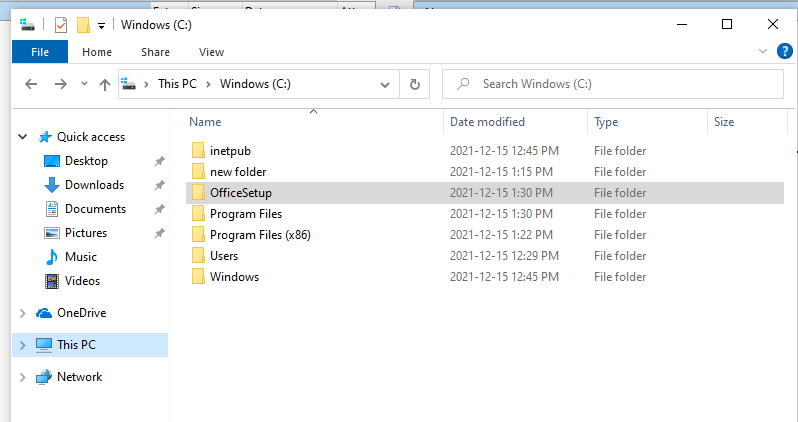
Create a folder (preferably with a short name i.e. OfficeSetup and make sure the following files are all inside the directory
- Office2019.xml ~375 Bytes (This XML is configured for MS Office 2019 Standard x86 install)
- Setup.exe ~8.1 MB
- OfficeSetup.zip ~2.01 GB (This is the downloaded content for MS Office Standard 2019. Extract this to the C:\ drive. Verify that the folder C:\OfficeSetup exists with all extracted contents of the ZIP file inside the directory.
Install Procedure:
- Open the Command Prompt (as administrator), and navigate to the folder you've created with all the required files. In this example, it will be C:\temp a.> cd c:\temp
- Make sure all contents of OfficeSetup.zip, have been extracted to the C:\ drive, where the directory C:\OfficeSetup present
- From the C:\temp folder in the command prompt, run the following command: setup /configure office2019.xml
- A window will display showing the progress of the install, and when it is completed.
________________________________________________________________________
Basic Troubleshooting:
Error Code: 30182-2016 (3)
If you receive an error prompt (please see caption): 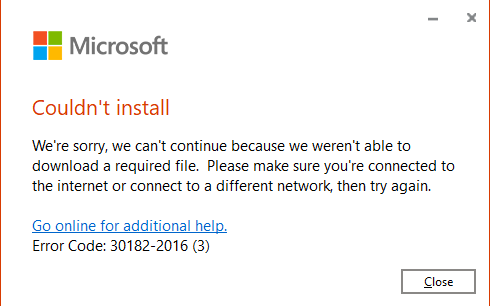
This means that the following:
The folder wasn't created properly
All or some files within the folder are missing
Some of the files in folder was corrupted
In any event, you would have to run the following command (from command prompt) to download the install files/folder: setup /download office2019.xml
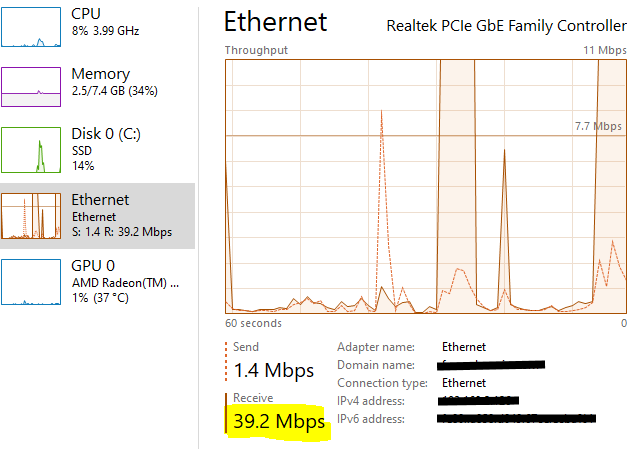
The entire process runs in the background, so you can't see anything. The download takes about 10 min (based on Internet speed/bandwidth) as its downloading roughly 2.1 GB of files. The only way to see what is happening is open Windows 10 Task Manager (via Ethernet or WiFi graph), and monitor the network activity (see caption below). The graph will spike and maintain high, and your receive traffic will jump from kilobytes to megabytes. Once the download is finished, the graph will drop, as well as your receive traffic
Once the download is compete, run the following command: setup /configure office2019.xml again.
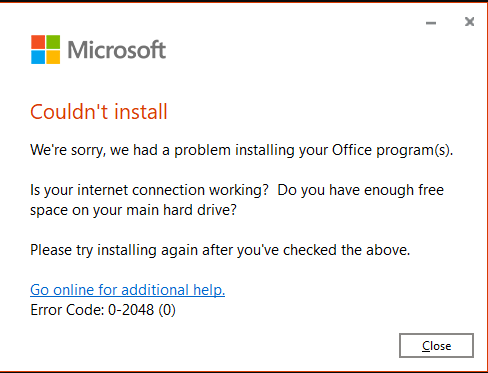
Error Code: 0-2048 (0)
This error means, when you typed the following command: setup /configure office2019.xml, the XML file name was misspelled.
Comments
0 comments
Please sign in to leave a comment.