
Create A Contact Group (Distribution List) From Excel Data
This method will guide you quickly create a contact group (distribution list) from Excel data, without applying the Import and Export Wizard in Outlook. Please do as follows:
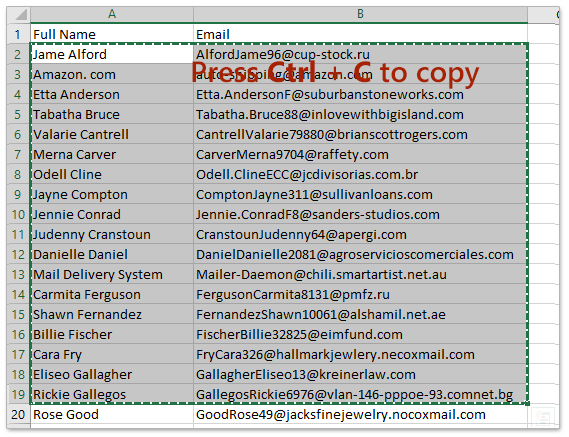
1. Open the Excel workbook that you will create a contact group from, select the data, and press Ctrl + C keys together to copy
2. Shift to the People (or Contacts) view in Outlook, and click Home > New Contact Group to create a new contact group.
3. Now a Contact Group window is opening. Please click Contact Group > Add Members > From Outlook Contacts. See screenshot:

4. In the popping out Select Members dialog box, put the cursor in the Members box, press Ctrl + V keys simultaneously to paste the Excel data, and then click the OK button. See screenshot:

5. Now you return to the Contact Group window. Please type a name for the new contact group in the Name box, and then click Contact Group > Save & Close button.

So far, you have created a contact group from an Excel workbook already.
Reference: https://www.extendoffice.com/documents/outlook/4498-outlook-create-contact-group-from-excel.html#a1
Comments
0 comments
Please sign in to leave a comment.